Help Center / Connect Apps and Channels
How-toConnect Claude and Other MCP Clients to Your Super Agent
Connect Claude Desktop, Claude Code, or another app that supports Model Context Protocol (MCP).
What This Connects
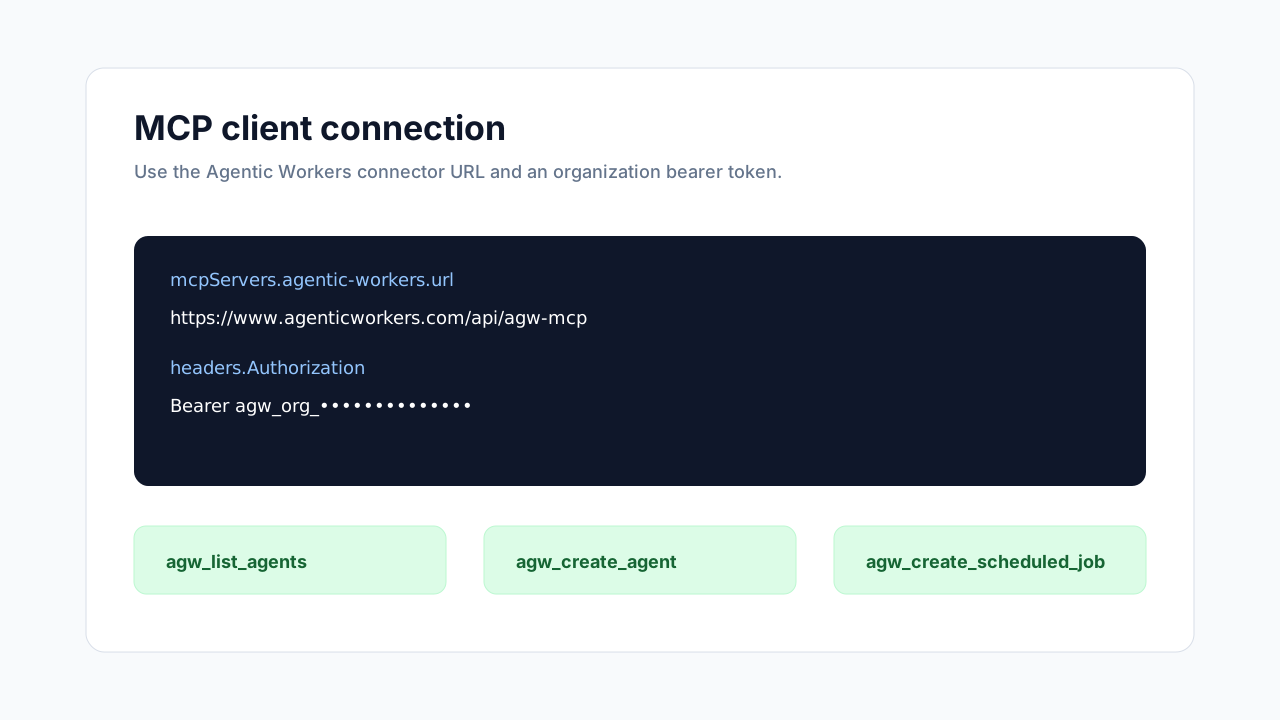
Agentic Workers exposes your main agent workspace through a remote Model Context Protocol (MCP) endpoint at https://www.agenticworkers.com/api/agw-mcp. MCP is the standard that lets AI apps discover and call tools from another product. The remote server is backed by the same public operation catalog as the versioned /api/v1 API.
Use this when you want Claude Desktop, Claude Code, Cursor, or another MCP-capable client to inspect or manage the Agentic Workers workspace with the same organization token used by the Operator CLI. Start by listing tools and agents; do not ask a client to change or run work until you have confirmed the organization and target.
Before You Start
Sign in to Agentic Workers and open the organization that owns the Super Agent you want to control. Direct login grants access to the organization that is active when you approve the connection.
Use an MCP client that supports remote HTTP JSON-RPC connections and custom request headers. If your client only supports local stdio MCP connections, use that client's documented remote MCP bridge and pass the same connector URL and Authorization header through the bridge.
Treat every saved MCP credential like a password. It can act on your behalf in the organization, so do not paste it into public chats, commit it to a repository, or share it with clients you do not trust.
Choose Direct Login or a Token
For supported clients, use the direct-login URL and complete browser consent for the intended workspace.
Direct-login connector URL: https://www.agenticworkers.com/api/agw-mcp?login=true
For a non-interactive client, use the connector URL without the login flag and configure Authorization: Bearer <your-token>.
Copy This Setup Prompt
Connect Agentic Workers as a remote HTTP MCP server using:
https://www.agenticworkers.com/api/agw-mcp?login=true

Use the server's direct browser login. Never ask me to paste an access token into this conversation, and never print, store, or summarize credentials. After I approve the login:

1. List the available tools.
2. Call agw_agents_list as a read-only check.
3. Tell me which Agentic Workers organization and agents you can access.
4. Stop if the workspace is not the one I intended.
5. Prefer canonical agw_<resource>_<action> tool names.
6. Ask for explicit approval before every write, execute, or destructive action. Include the exact target and expected effect in the approval request.
7. After an approved change, read the affected resource or trace and report whether it completed.

Do not send external messages, run agents or jobs, create schedules, clone or deploy agents, attach MCP servers, restart gateways, execute commands, or delete anything until I approve that exact action.
Claude Desktop
{
  "mcpServers": {
    "agentic-workers": {
      "url": "https://www.agenticworkers.com/api/agw-mcp",
      "headers": {
        "Authorization": "Bearer <organization-operator-token>"
      }
    }
  }
}
Claude Code and Generic MCP Clients
For Claude Code or another MCP client, add Agentic Workers as a remote HTTP MCP connection. Prefer https://www.agenticworkers.com/api/agw-mcp?login=true so the client can authenticate through the browser. If the client cannot complete OAuth, use https://www.agenticworkers.com/api/agw-mcp with an Authorization header containing a static organization token.
If the client asks for transport or protocol details, choose HTTP JSON-RPC MCP. The Agentic Workers endpoint supports initialize, notifications/initialized, ping, tools/list, and tools/call. Canonical tools use names such as agw_agents_list and agw_jobs_execute; older agw_list_agents-style names remain compatibility aliases.
If the client stores MCP connections in JSON, use this structure: mcpServers -> agentic-workers -> url plus headers -> Authorization. Keep the token in the client's secret store or local private config when possible. Prefer canonical tool names for new automations.
Verify the Connection
{
  "jsonrpc": "2.0",
  "id": 2,
  "method": "tools/call",
  "params": {
    "name": "agw_agents_list",
    "arguments": { "limit": 20, "offset": 0 }
  }
}
Troubleshooting
If direct login receives 401 or does not open the browser, confirm the client supports OAuth for remote HTTP MCP servers and that the connector URL ends with ?login=true. For static-token authentication, generate a fresh organization token, confirm the Authorization header starts with Bearer, and make sure there are no extra spaces before or after the token.
If the client cannot find tools, confirm it is using POST requests to /api/agw-mcp for MCP JSON-RPC and that it supports remote HTTP MCP connections with custom headers. A plain GET request only returns the discovery shape used by Agentic Workers documentation.
If the client connects to the wrong organization, revoke the token, switch to the intended Agentic Workers organization, generate a new token there, and update the MCP client configuration.
If a tool call fails because a connected app is missing, connect that app from Integrations first, then rerun a small read-only prompt. The external MCP connector can manage Agentic Workers agents and tools, but provider access still depends on the integrations connected inside Agentic Workers.
If Claude or another client tries to take a sensitive action too early, update your prompt to require approval before sending messages, changing customer records, cloning a hosted main agent, running a job, restarting a gateway, deleting resources, deploying agents, or attaching new MCP tool connections.
Was this helpful?
Your feedback helps us rank and improve Help Center articles.
Related Articles
Connect Apps and Tools to Your Agents
Connect apps to an agent and test the right tools before production work.
Read ArticleConnect an Integration
Authorize Gmail, Slack, Linear, Stripe, and other tools for agent work.
Read ArticleSet Up the Operator CLI for Your Team
Install the CLI, sign in securely, and check workspace access.
Read ArticleMeet Your Super Agent Command Center
Use your Super Agent to coordinate work, monitor progress, and launch repeatable tasks from one place.
Read ArticleCreate Your First Agent With Your Super Agent
Ask your Super Agent to create a focused agent for one team role.
Read ArticleRead an Agent Trace
Use traces, the step-by-step run logs, to find tool calls, failures, and ways to improve an agent.
Read Article